Example Approval
Alongside the library modules, several example modules and applications demonstrate the solution's main features. This includes example applications for different usage scenarios. They all share the same business process described in the next section.
Business context: Approval#
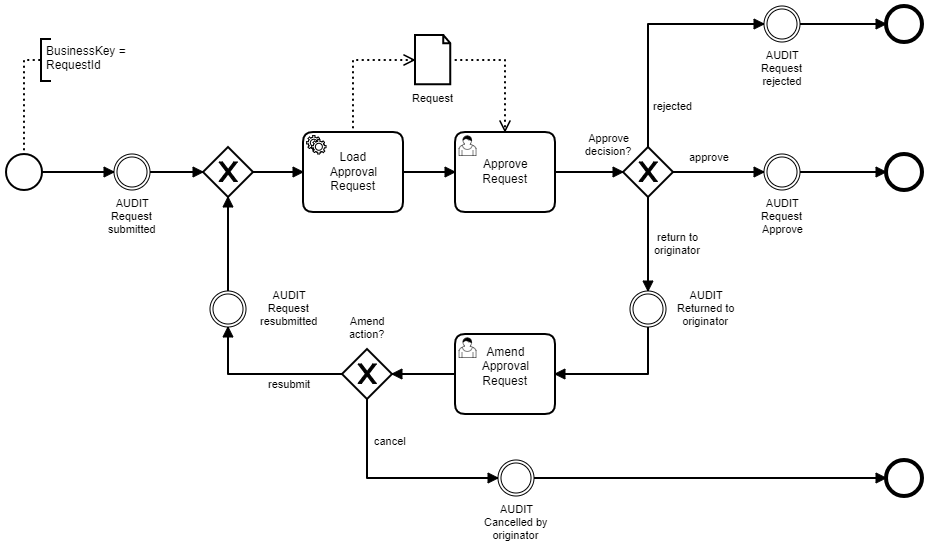
Consider the process model above. Imagine that you are building a system to manage all approval requests in a company. Users can submit requests that are eventually approved or rejected. Sometimes, the approver returns a request to the originator for correction instead (the originator is the person who submitted it). The originator can then amend, resubmit, or cancel the request.
An approval request is modelled as follows. The subject describes what the request is about, and the applicant is the person it concerns (who may differ from the originator). The amount and currency denote the request cost. All requests must be stored for compliance purposes.
The request is initially created in the DRAFT state. It changes to IN PROGRESS when the process starts and eventually reaches
the final ACCEPTED or REJECTED state.
For this example, two user groups are created: The Muppet Show (Kermit, Piggy, Gonzo, and Fozzy) and The Avengers (Ironman,
Hulk). Gonzo and Fozzy are responsible for approvals.
Process Run#
The following sequence runs through the process model:
Ironmansubmits an Advanced Training request on behalf ofHulk- The request cost is provided in the wrong currency, so
Gonzoreturns the request toIronmanfor correction (EUR instead of USD) Ironmanchanges the currency to USD and resubmits the requestGonzois out of office, soFozzytakes over and approves the request
Running Examples#
To run the example, see Usage Scenarios.
Note
Because the process application includes the Camunda BPM engine, you can use the standard Camunda webapps at http://localhost:8080/camunda/app/. The default credentials are admin / admin.
Storyboard#
The following storyboard explains the provided implementation:
TIP: This storyboard assumes that you started the single-node scenario and the application runs locally at http://localhost:8080. Adjust the URLs if you started it differently.
-
To start the approval process for a request, open the
Example Tasklistin your browser: http://localhost:8080/polyflow/. The selected user isIronman. -
Open the
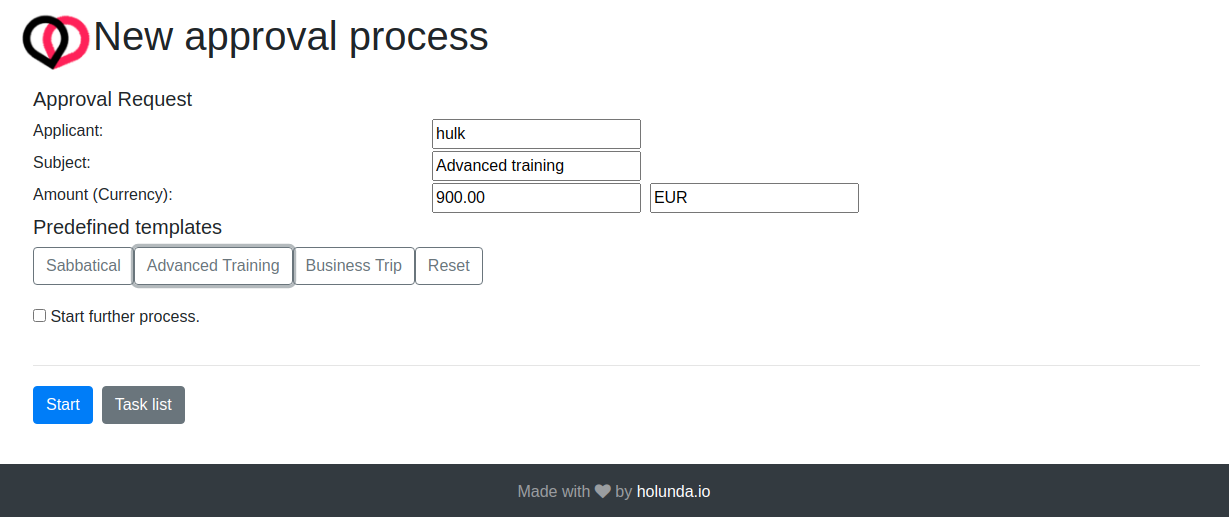
Start new...menu and selectRequest Approval. You should see the start form for the example approval process.
-
Select
Advanced Trainingfrom a predefined template and click Start. The start form disappears and redirects to the emptyTasklist. -
Because you are still acting as
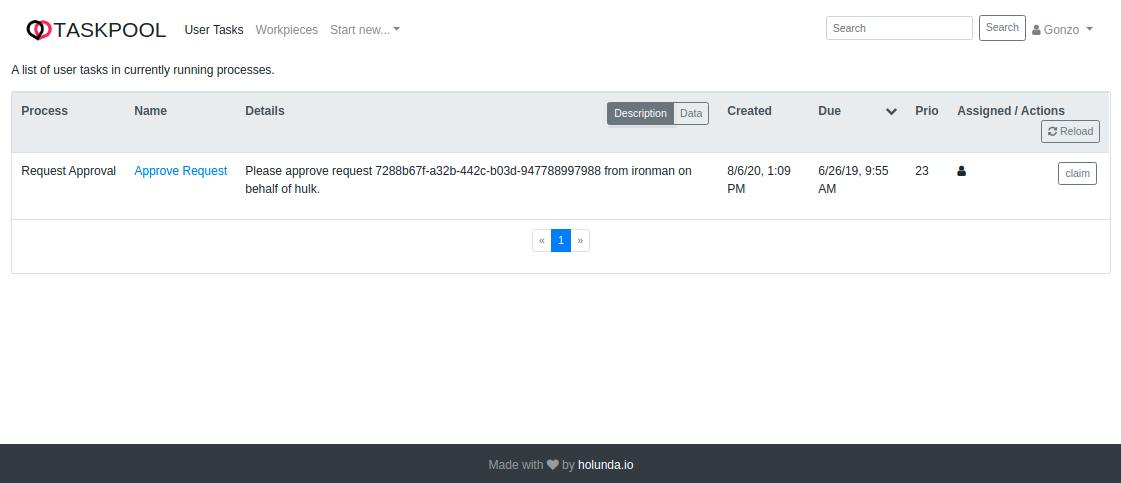
Ironman, there is nothing to do here. Switch the user toGonzoin the top-right corner. You should see theApprove Requestuser task from theRequest Approvalprocess.
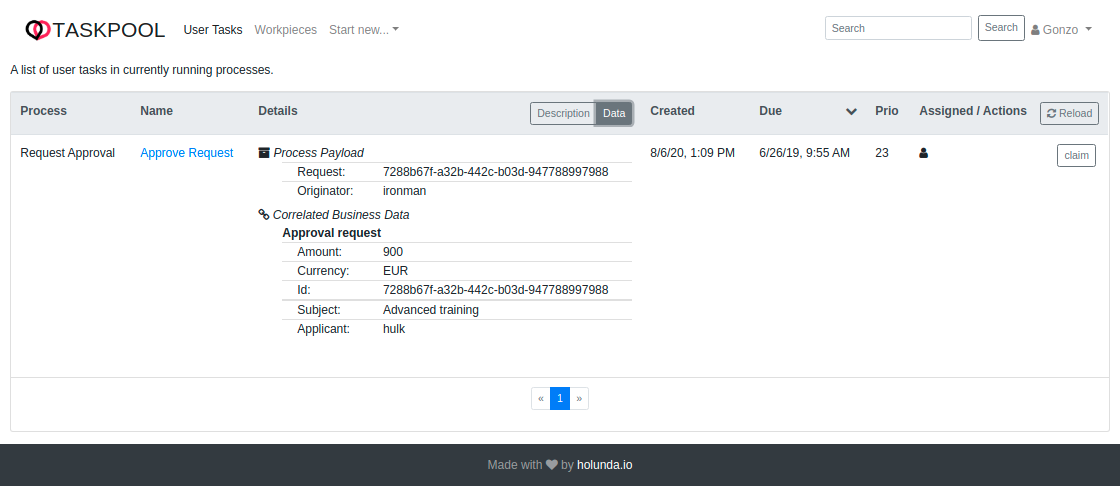
- Examine the task details by clicking the Data tab in the Details column. You can see the request data correlated with the current process instance.
- Click the task name to open the
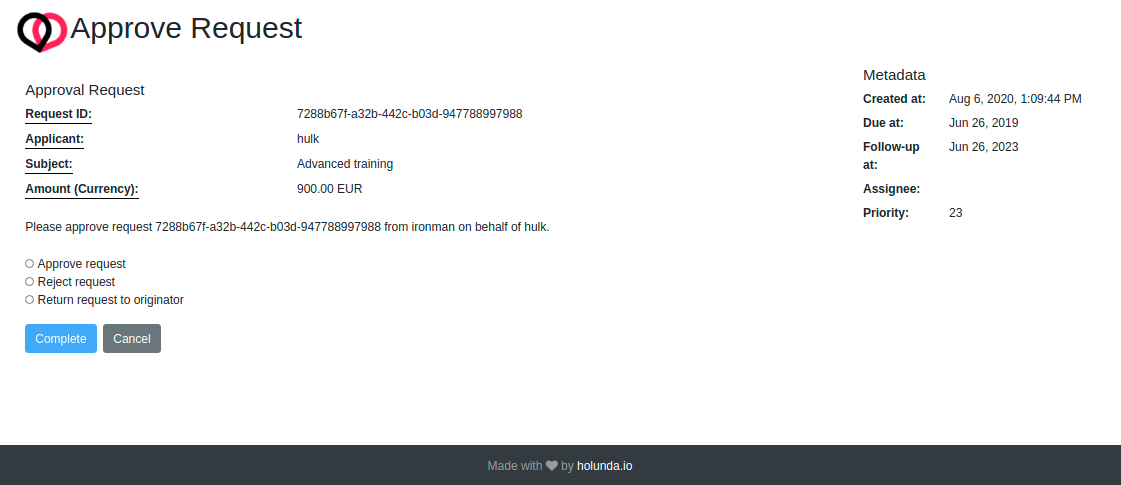
Approve Requestuser-task form. SelectReturn request to originatorand click Complete.
- Switch to
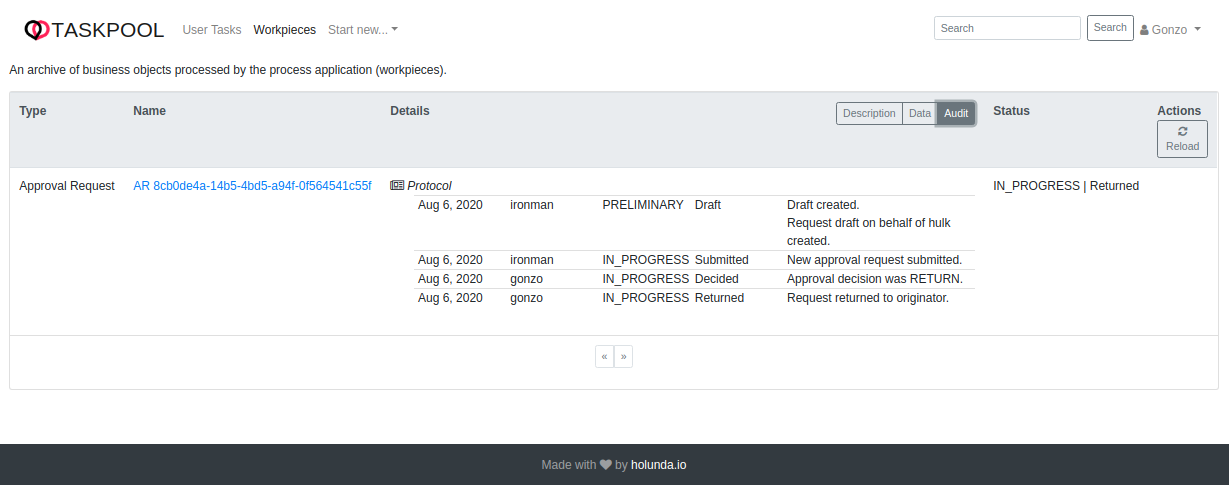
Workpiecesto see the request business object. Examine the approval request by clicking the Data, Audit, and Description tabs in the Details column.
- Change the user back to
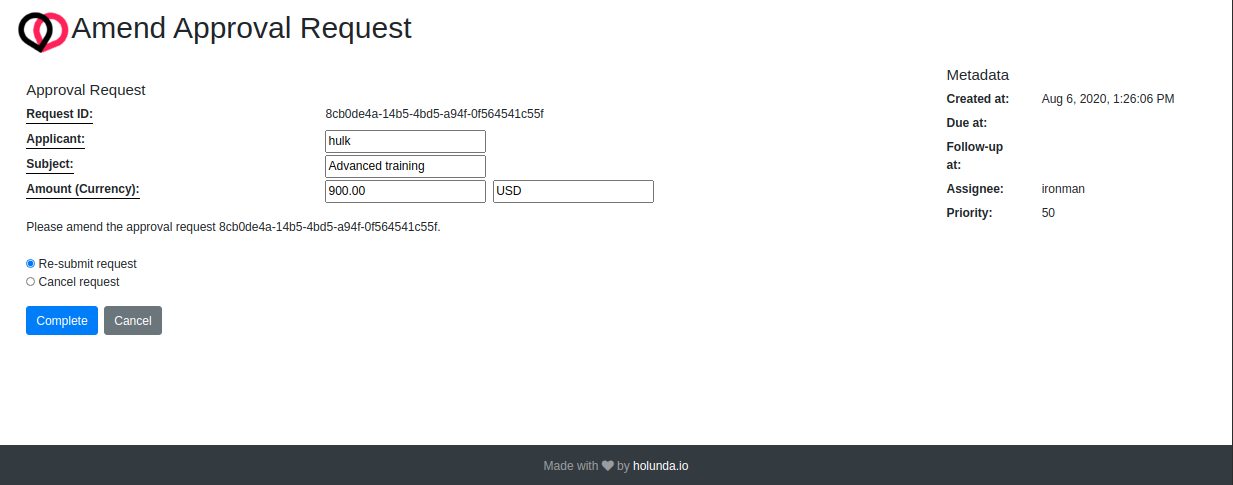
Ironman, switch to theTasklist, and open theAmend requesttask. Change the currency toUSDand resubmit the request.
-
Change the user back to
Fozzy, open theApprove Requesttask, and approve the request by selecting the appropriate option. -
Switch to
Workpieces; the request business object remains visible after the process finishes. Examine the approval request by clicking the Data, Audit, and Description tabs in the Details column.