C7 Process Test Coverage#
This Camunda Platform 7 and Platform 8 community extension visualises test process paths and checks your process model coverage ratio. Running typical JUnit tests now leaves html files in your build output. Just open one and check yourself what your test did:
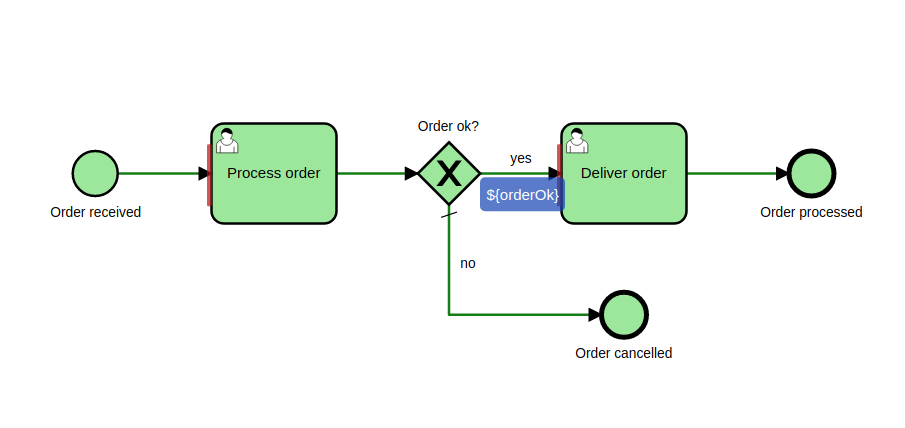
Highlights#
- Visually verify the paths covered by individual tests methods and whole test classes
- Visually check gateway expressions and transaction borders (save points) used by your process
- Calculate and verify the nodes (and sequence flow) coverage ratio reached by tests methods and classes.
Just use it#
- Integrates with all versions of Camunda Platform 7 starting with 7.20.0 and upwards as well as Camunda Platform 8
- Is continuously checked against the latest Camunda Platform 7 releases (check out our compatibility CI/CD pipeline)
- Tested with JDKs 17 and 21 and different operating systems (Windows, Mac and Linux).
- Supports JUnit 4.13.1+ (4.11 does not work) or JUnit 5 for Camunda 7
- Supports JUnit 5 for Camunda 8 (uses Zeebe Process Test)
- Can be used inside Spring Tests
[!IMPORTANT] If you're running with a Java version prior to 17 you have to use the old version 2.x (latest 2.8.0)
Documentation#
If you are interested in further documentation, please check our Documentation Page
Installation#
Add a Maven test dependency to your project 
JUnit5 (Platform 7)#
<dependency>
  <groupId>org.camunda.community.process_test_coverage</groupId>
  <artifactId>camunda-process-test-coverage-junit5-platform-7</artifactId>
  <!-- <artifactId>camunda-process-test-coverage-junit5-platform-8</artifactId> -->
  <version>${camunda-process-test-coverage.version}</version>
  <scope>test</scope>
</dependency>
Configuration#
Use the ProcessCoverageInMemProcessEngineConfiguration, e.g. in your camunda.cfg.xml (only needed for Platform 7)
<bean id="processEngineConfiguration"
   class="org.camunda.community.process_test_coverage.engine.platform7.ProcessCoverageInMemProcessEngineConfiguration">
   ...
</bean>
Use the ProcessEngineCoverageExtension as your process engine JUnit extension (available for Platform 7 and Platform 8)
Either use @ExtendWith
Java
@ExtendWith(ProcessEngineCoverageExtension.class)
public class MyProcessTest {}
Kotlin
@ExtendWith(ProcessEngineCoverageExtension::class)
class MyProcessTest
@RegisterExtension
If you register the extension on a non-static field, no class coverage and therefore no report will be generated. This is due to the fact, that an instance of the extension will be created per test method.
The extension provides a Builder for programmatic creation, which takes either a path to a configuration resource, a process engine configuration or if nothing is passed uses the default configuration resources path (camunda.cfg.xml).
The process engine configuration needs to be configured for test coverage. So use either the provided ProcessCoverageInMemProcessEngineConfiguration, SpringProcessWithCoverageEngineConfiguration or initialize the configuration with ProcessCoverageConfigurator.initializeProcessCoverageExtensions(configuration).
If you use Java:
@RegisterExtension
static ProcessEngineCoverageExtension extension = ProcessEngineCoverageExtension
        .builder().assertClassCoverageAtLeast(0.9).build();
If you prefer Kotlin:
companion object {
    @JvmField
    @RegisterExtension
    var extension: ProcessEngineCoverageExtension = ProcessEngineCoverageExtension
            .builder(ProcessCoverageInMemProcessEngineConfiguration())
            .assertClassCoverageAtLeast(1.0).build()
}
Quick Start#
If you just want to start using the library, please consult our Getting Started guide.
User Guide#
The user guide consists of several sections.
Configuration#
Plugins#
Running the tests#
Running your JUnit tests now leaves html files for individual test methods as well as whole test classes in your project's target/process-test-coverage folder. Just open one, check yourself - and have fun with your process tests! 